
PeopleEmployees
Add an employee
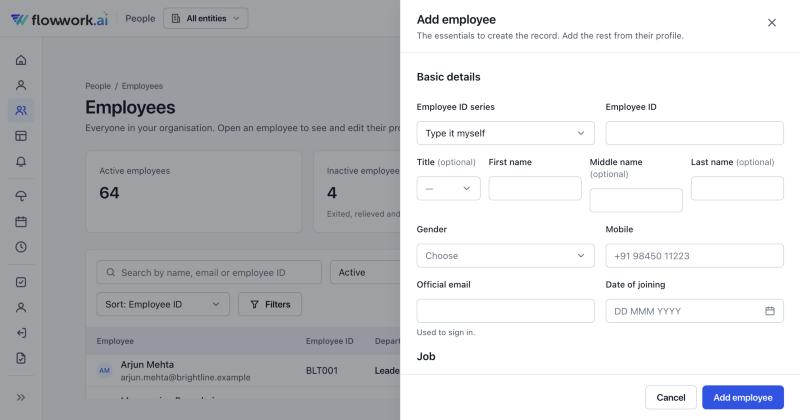
Create one employee record with the essentials: ID, name, contact, joining date and job. The new profile then opens with a setup bar that walks you through what's still missing.
Before you start
- You need the permission to create employees. To use the setup bar afterwards, you also need the permission to update employees. See Who can see what.
- Departments, designations and employment types must exist. See Departments and Designations.
- Work locations come from Admin › Account settings. If none exist, the Work location list is empty and you can't save.
- To number employees automatically, set up a naming series. See Naming series.
- The official email must not already be used to sign in by someone else.
Fill in the basic details
- Go to People › Employees and select Add employee.
- Employee ID series: pick a series to get the next number in it, or Type it myself. You can change a suggested ID.
- Employee ID: if another employee already has it, you'll see "Another employee already has this ID."
- Title (optional), First name, Middle name and Last name (optional).
- Gender and Mobile. Use digits, with an optional + country code.
- Official email: they sign in with it. If someone already signs in with it, you'll see "Someone already signs in with this email."
- Date of joining.
Read the full guide with your flowwork account
The rest of this page has the steps, screenshots and tips. Anyone at a company that uses flowwork can read every page, and ask the Help assistant about it.
Every step, in order Real screenshots The agents that help
New companies use flowwork free until 31 December 2026