
Import and export employees
Add many employees at once from an Excel template, update many people's compensation from a spreadsheet, or download the list you're looking at as a CSV file.
Before you start
- Import shows if you can create employees or change compensation. Inside it you see Employees, Compensation or both, depending on your permissions.
- Importing compensation needs the permission to update employees.
- Export needs the permission to view employees.
- Departments, designations, employment types and work locations in the file must already exist. See Departments and Designations.
Import employees
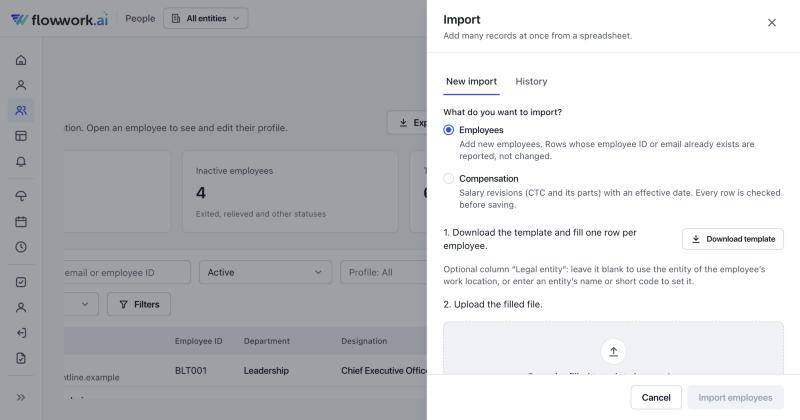
- Go to People › Employees and select Import.
- Under What do you want to import?, choose Employees.
- Select Download template and fill in one row per employee. Lists in the sheet offer your own departments, designations, statuses and work locations.
- Drop the filled file on the box, or browse for it. Use the Excel template (.xlsx), up to 5 MB.
- Select Import employees.
The template's columns: Employee ID, First Name, Middle Name, Last Name, Official Email, Salutation, Employment Status, Gender, Dial Code, Mobile, Date Of Joining (YYYY-MM-DD), Department, Designation, Employment Type, Work Location, Cost Center, Reporting To (their employee number) and Aadhaar Number. Columns marked with * in the sheet are required.
If your company has two or more legal entities, there's an optional Legal entity column. Leave it blank to use the entity of the work location, or enter an entity's name or short code.
Read the full guide with your flowwork account
The rest of this page has the steps, screenshots and tips. Anyone at a company that uses flowwork can read every page, and ask the Help assistant about it.