
PeopleSettings
Grades and employee statuses
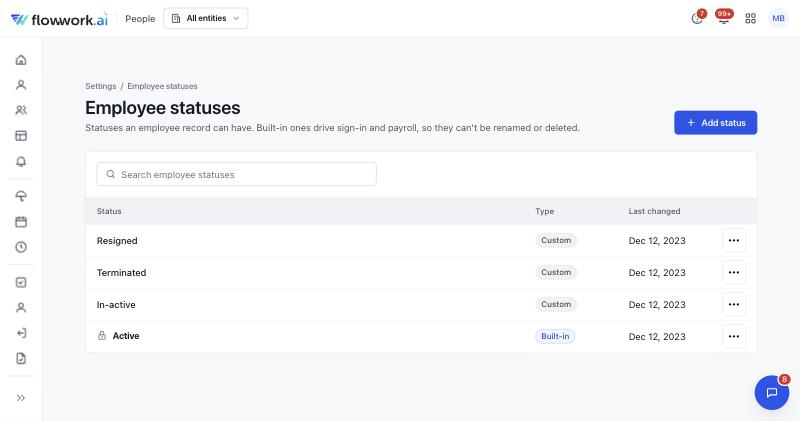
Grades are pay or seniority bands, such as L1 or M2, that you set on an employee's job details. Employee statuses are the statuses an employee record can have, such as Active or Inactive. Both are short lists you keep under Settings.
Before you start
- Grades opens with View grades. To add, change or delete you also need Create grades, Update grades or Delete grades.
- Employee statuses opens with View employee statuses. To add, change or delete you also need Create, Update or Delete employee statuses.
- Without the view permission, the page shows Forbidden. See Who can do what.
Grades
Go to People › Settings › Grades. The list shows each grade's Name, Description and when it was Last changed, 20 to a page. Use Search grades to find one.
Add a grade
- Select Add grade.
- Type the Name (up to 100 characters) and, optionally, a Description (up to 500).
- Select Add grade.
Change or delete a grade
- Select the grade's name to change it, then Save. History in the panel lists every change.
- Or open its menu and select Delete, then Delete grade. Employees who have the grade keep it on their record until someone changes it.
Read the full guide with your flowwork account
The rest of this page has the steps, screenshots and tips. Anyone at a company that uses flowwork can read every page, and ask the Help assistant about it.
Every step, in order Real screenshots The agents that help
New companies use flowwork free until 31 December 2026