
PeopleEmployees
Org chart
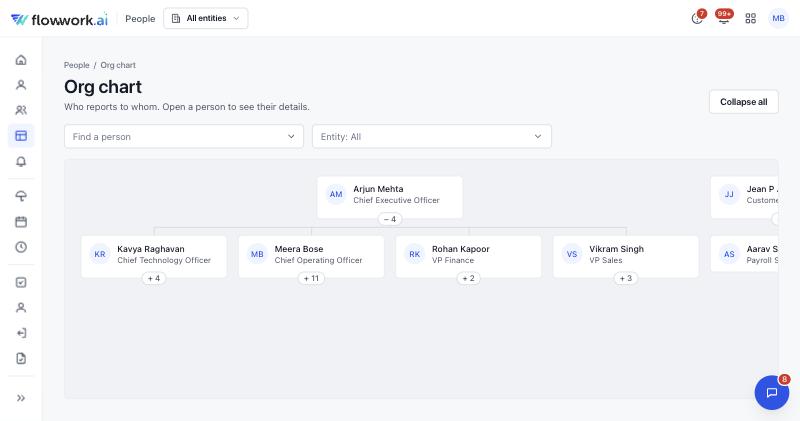
People › Org chart shows who reports to whom. It's built from the Reports to set on each employee's Job tab, so it's only as right as that field.
Before you start
- Everyone can open the org chart from the side menu.
- People without a manager and without a team aren't in the chart. They're listed under Not in a reporting line.
Browse the chart
- Go to People › Org chart. The top managers show first, biggest teams first, with their first level opened.
- Select the arrow under a person to show or hide their direct reports. The number tells you how many there are.
- Select Collapse all to close everything again.
- Select Not in a reporting line to list people with no manager and no team.
A card that says "Reporting line loops back here" means two people are set as each other's manager somewhere up the line. Fix Reports to on one of them.
Read the full guide with your flowwork account
The rest of this page has the steps, screenshots and tips. Anyone at a company that uses flowwork can read every page, and ask the Help assistant about it.
Every step, in order Real screenshots The agents that help
New companies use flowwork free until 31 December 2026