
PeopleEmployees
Find employees
People › Employees lists everyone in your company. Search, filter and sort the list, see whose profile is still missing something, and open anyone's profile.
Before you start
- Everyone can open Employees from the side menu.
- To see the whole company you need the permission to view employees. Without it, the list shows only you.
- The buttons at the top depend on your permissions too: Add employee and Import need the permission to create employees, Changes to review needs the permission to update employees. See Who can see what.
What the list shows
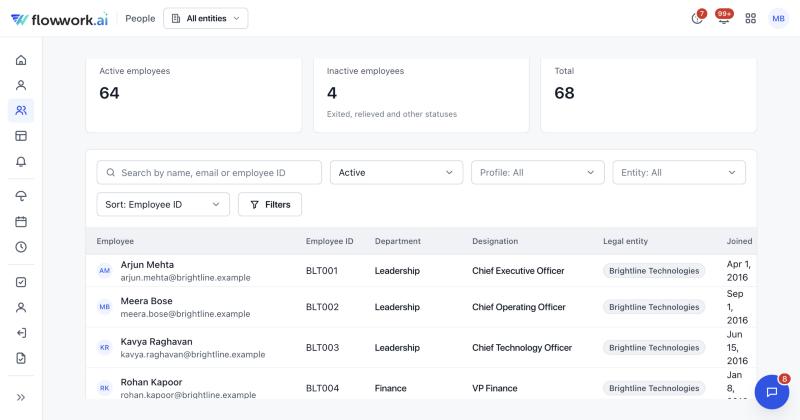
At the top, HR sees three counts: Active employees, Inactive employees (exited, relieved and other statuses) and Total. The counts are for the whole company. They don't change with your search, filters or legal entity.
Each row shows:
- Employee: name, photo and official email. Select the name to open the profile.
- Employee ID, Department, Designation and Joined.
- Legal entity, only if your company has two or more legal entities.
- Profile: how complete the profile is. Complete, or a percentage. Point at the badge to see what's missing.
- Status: the employment status, such as Active.
The list shows 20 people a page. Use the page numbers at the bottom to move on.
Read the full guide with your flowwork account
The rest of this page has the steps, screenshots and tips. Anyone at a company that uses flowwork can read every page, and ask the Help assistant about it.
Every step, in order Real screenshots The agents that help
New companies use flowwork free until 31 December 2026