
PayrollAgents in Payroll
Payslip explainer
"Why is my pay lower this month?" The agent compares two months of your payslips line by line and explains the difference in plain words: loss-of-pay days, TDS and why it changed, arrears, one-time pay items, reimbursements, insurance, PF, ESI, professional tax, joining or leaving mid-month and salary revisions. Every amount comes from your payslips.
Before you start
- The agent must be hired for your company, and you must be allowed to use it.
- You need published payslips. You don't need any payroll permission to explain your own pay.
Explain your pay
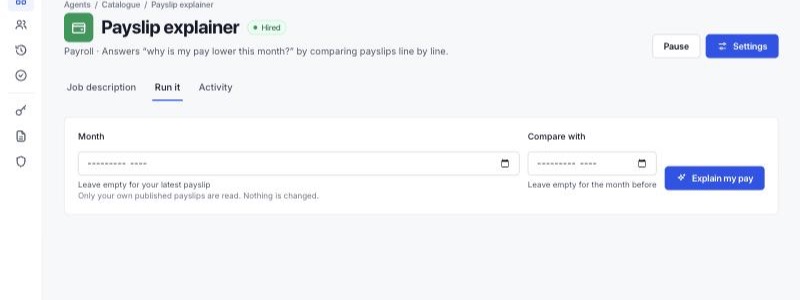
- Open Agents › Catalogue › Payslip explainer and select Run it.
- Under Month, pick the payslip to explain, or leave it empty for your latest payslip.
- Under Compare with, pick the other month, or leave it empty for your payslip before it.
- Select Explain my pay.
- Read the result:
- The heading, for example "October 2026 compared with September 2026: take-home down ₹2,000".
- The explanation.
- What changed around it: loss-of-pay days and dates, paid days, joining or leaving, salary revision, arrears, one-time items, tax regime and TDS working.
- Lines that changed: each earning, deduction or perquisite with its amount in both months.
Read the full guide with your flowwork account
The rest of this page has the steps, screenshots and tips. Anyone at a company that uses flowwork can read every page, and ask the Help assistant about it.
Every step, in order Real screenshots The agents that help
New companies use flowwork free until 31 December 2026