
PayrollSetup
Send payroll to your books (Accounting)
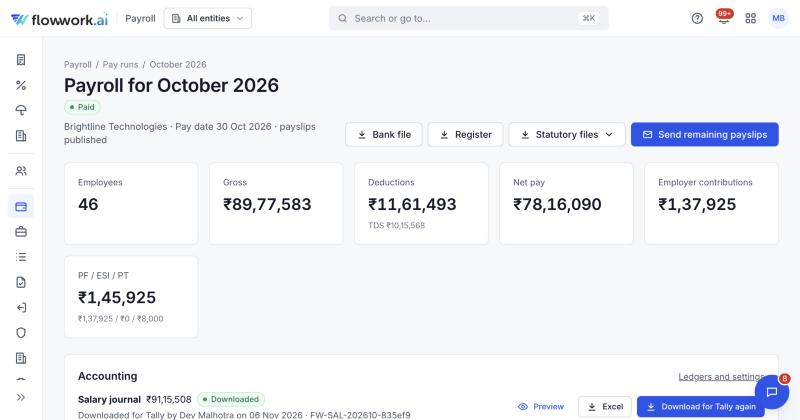
Each approved pay run has a salary journal for your accounts: salary cost on one side, and what is owed (net pay, PF, ESI, professional tax, TDS) on the other. Once the run is paid, there's also a salary payment entry. You can download them for Tally or as Excel, or send them to Zoho Books or FlowBooks if your company connected one.
You do this from the Accounting card on the pay run's page. The ledgers themselves are set up outside Payroll, in Accounting.
Before you start
- You need one of two accounting permissions, which are separate from the payroll ones: Manage accounting (set up ledgers and settings) or Post accounting (download and send journals). Without either, the card doesn't show.
- Someone with Manage accounting must first map payroll's items (salary cost, PF payable, TDS payable, bank and so on) to your ledgers in Accounting. The card's Ledgers and settings link goes there.
- The run must be Approved or Paid.
Steps
- Go to Pay runs and open an approved or paid run.
- Scroll to the Accounting card. It shows Salary journal and, once the run is paid, Salary payment, each with its amount and status.
- Select Preview to see the journal lines: Ledger, For, Cost centre, Debit and Credit, with the totals.
- Do one of these:
- Download for Tally: an XML file to import in Tally,
- Excel: the journal as a spreadsheet,
- Send to Zoho Books or Send to FlowBooks, if your company connected one in Accounting.
Read the full guide with your flowwork account
The rest of this page has the steps, screenshots and tips. Anyone at a company that uses flowwork can read every page, and ask the Help assistant about it.
Every step, in order Real screenshots The agents that help
New companies use flowwork free until 31 December 2026