
PayrollPay runs
Find your pay runs
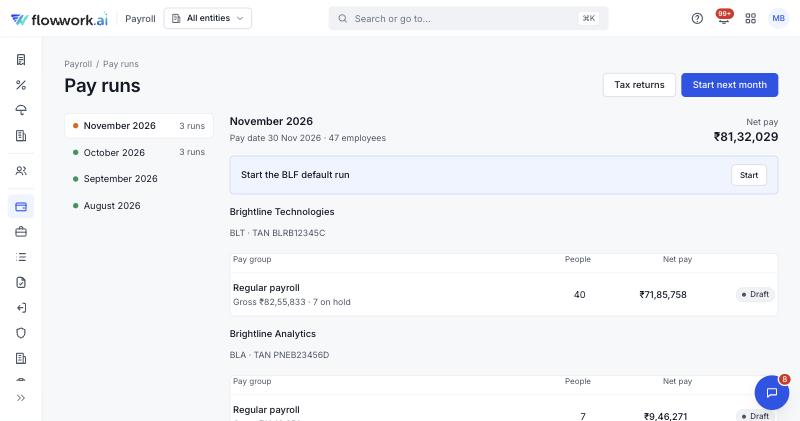
Pay runs is the first page of Payroll. It lists every pay run month by month, shows how far each month has got, and tells you the next step.
Before you start
- You see Pay runs in the menu if you have any of these permissions: View payroll, Manage payroll settings, Run payroll or Approve payroll. Without one of them, opening Payroll takes you to My payslips.
- Starting runs and the Start buttons need Run payroll or Approve payroll. With only View payroll or Manage payroll settings you can open runs and read them, but not change them.
What's on the page
- Months (left): one entry per month that has a run, newest first. A dot shows the month's state:
- To start: a pay group has no regular run yet.
- In progress: a run is in Draft or Awaiting approval.
- Approved: every run is approved, at least one isn't paid yet.
- Paid: every run is paid. On a phone, the months are in a Month drop-down instead.
- The page opens on the latest month that still has work left, else the latest month.
- Month panel (right): the month, the pay date, how many employees the regular runs pay, and the month's Net pay across all its runs.
- Next step bar: what to do next, with a button. For example Start the Default run, Review and submit Regular payroll, Approve … (or Waiting for approval if you can't approve), or Mark paid and publish payslips.
- Run list: one row per run with People, Net pay and its status: Draft, Awaiting approval, Approved or Paid. Select a row to open the run. See The pay run page.
- Under each run name you see its gross pay and how many people are on hold, or a red line when something needs fixing, such as "3 can't be paid as they are" or "No pay worked out for 5 people; check their salaries".
- Payout: … badge: when bank files are locked on the run's Payout tab, for example Payout: Waiting for the bank or Payout: All paid. See Pay salaries and download bank files.
- Add a run for (month): links for Reimbursements, Off-cycle and Mid-month salary. See Off-cycle and mid-month runs and Pay expense claims with salary.
Read the full guide with your flowwork account
The rest of this page has the steps, screenshots and tips. Anyone at a company that uses flowwork can read every page, and ask the Help assistant about it.
Every step, in order Real screenshots The agents that help
New companies use flowwork free until 31 December 2026