
PayrollPay runs
Pay salaries and download bank files
Once a run is approved, you pay the salaries through your bank: download a bank file, upload it to net banking, then mark the run as paid. If your company has set up its bank accounts in Payroll, the Payout tab also tracks each salary until the bank confirms it.
Before you start
- The run must be Approved or Paid.
- Downloading bank files needs Run payroll or Approve payroll. The files hold full account numbers.
- Locking files, marking a salary's status by hand, unlocking and approving re-payments need Approve payroll.
- Mark as paid needs Approve payroll.
- Employees need their bank account number and IFSC in People. Anyone paid by cheque or cash in their payroll profile isn't in the file.
- To get files in your bank's layout, add your company's accounts in Settings › Bank accounts. See Bank accounts.
Download a bank file
- Open the approved run.
- Select Bank file.
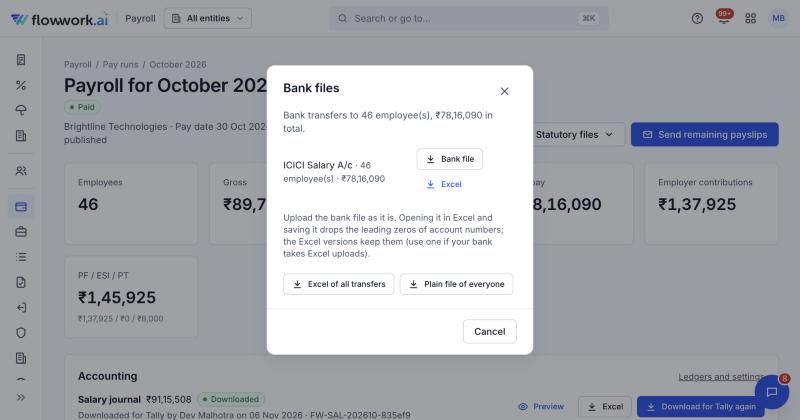
- A dialog shows how many employees the file pays and the total.
- Without company accounts: you see who is left out. Select Download file to get a CSV with Employee No, Employee Name, Bank, IFSC, Account Number, Amount and Narration ("Salary (month)").
- With company accounts: you see one line per account with its employees and amount. Select Bank file for the file in that bank's layout, or Excel for the same file as Excel. Excel of all transfers gives every transfer in one sheet to check. Plain file of everyone gives the simple CSV.
- Upload the file to net banking.
Read the full guide with your flowwork account
The rest of this page has the steps, screenshots and tips. Anyone at a company that uses flowwork can read every page, and ask the Help assistant about it.
Every step, in order Real screenshots The agents that help
New companies use flowwork free until 31 December 2026