
PayrollIncome tax
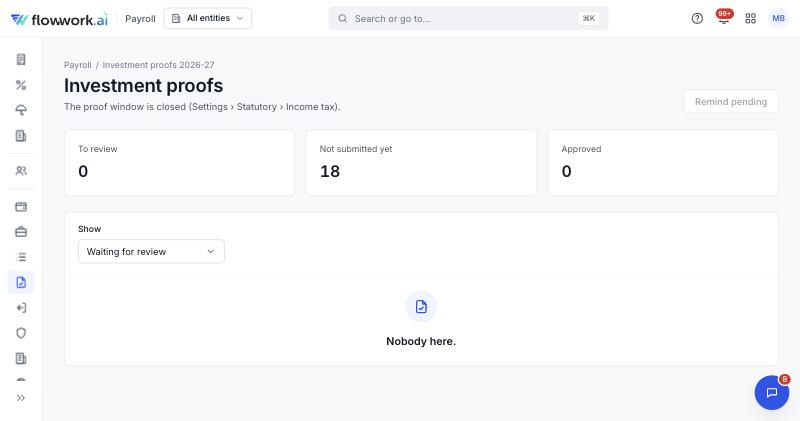
Review investment proofs
Near the end of the tax year, employees upload documents for what they declared: rent receipts, 80C investments, health insurance and so on. Payroll checks each one and approves or rejects it. From a cut-off month, TDS counts only the approved amounts for items that need proof.
Before you start
- To approve or reject proofs you need Run payroll or Approve payroll. To change an employee's proof details or upload for them, or to send reminders, you need Run payroll.
- To set the proof window you need Manage payroll settings.
- Everyone with payroll access can open this page and the uploaded documents.
Set the proof window
- Go to Settings › Statutory components, open Income tax (TDS) and choose the Tax year.
- In the Investment proofs card, switch on Employees can upload and submit proofs (between the dates below).
- Set Opens on and Due date. Until you save, the dates shown are 1 to 31 January.
- In Count only approved proofs from, choose the first payroll month that counts only approved amounts. Empty means the month after the due date.
- Set Landlord PAN needed above (rent a year) (₹1,00,000 if empty) and Largest file (1 to 10 MB, 5 by default).
- In Items that need proof, untick items that don't need proof, or type an amount in Only from (₹ declared) to ask for proof only above it.
- Select Save.
Read the full guide with your flowwork account
The rest of this page has the steps, screenshots and tips. Anyone at a company that uses flowwork can read every page, and ask the Help assistant about it.
Every step, in order Real screenshots The agents that help
New companies use flowwork free until 31 December 2026