
PayrollSetup
Company bank accounts and bank file formats
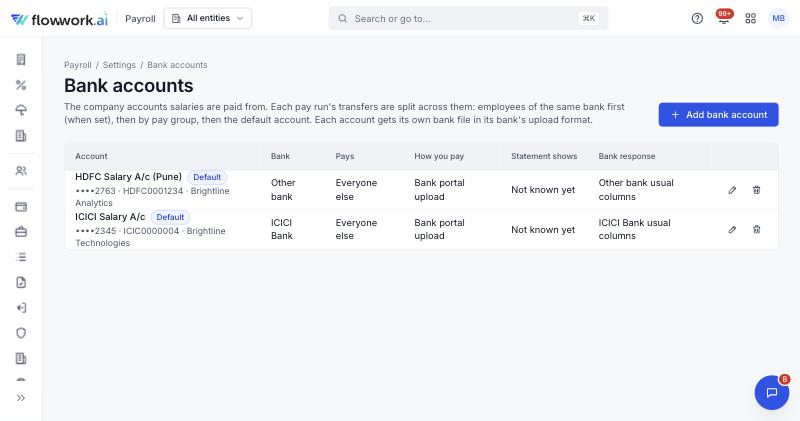
Here you add the company accounts that salaries are paid from. Each pay run's transfers are split across them, and each account gets its own bank file in its bank's bulk upload format. You then upload that file in your bank's net banking.
Before you start
- You need Manage payroll settings to add or change accounts. People with Run payroll or Approve payroll can see the page read-only. View payroll alone can't open the accounts.
- Have the account number, IFSC and a sample bulk upload file from your bank.
Add an account
- Go to Settings › Bank accounts.
- Select Add bank account.
- Fill in Name (for example "ICICI salary account").
- Choose Bank: ICICI Bank, YES Bank or Other bank. This fills in the bank's usual file layout, which you can change below.
- Type Account number (kept exactly as typed, leading zeros included), IFSC and, optionally, Name on the account.
- Under Who it pays, choose any of:
- Employees whose bank is … (a transfer within the bank),
- Pay groups,
- Default account: pays everyone the rules above don't give to another account.
- Keep In use on.
- Under How you pay, choose How salaries reach the bank and How the bank statement shows salaries (see below).
- Check Payment reference, Bank response file and Bank file layout (see below).
- Select Save. You see Bank account saved.
Read the full guide with your flowwork account
The rest of this page has the steps, screenshots and tips. Anyone at a company that uses flowwork can read every page, and ask the Help assistant about it.
Every step, in order Real screenshots The agents that help
New companies use flowwork free until 31 December 2026