
PayrollInsurance
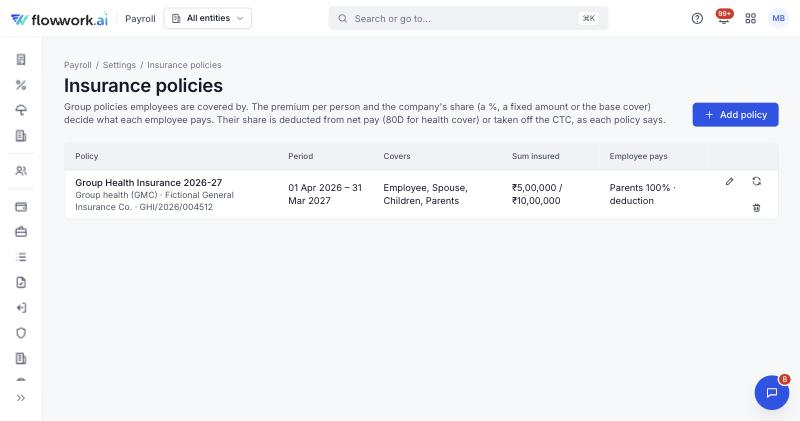
Set up group insurance policies
Add your company's group policies, such as group health (GMC), top-up, group term life (GTL) or group personal accident (GPA). For each one you say who can be covered, the sum insured options, the premium per person, what the company pays and how the employee's share is collected. Payroll then works out each employee's share and takes it through their salary.
Before you start
- You need Manage payroll settings to add or change policies. People with other payroll permissions can open the page but can't change anything.
- Have the insurer's quote ready: the sum insured options and the yearly premium per person (including GST), or the rate card by age.
- For age-based premiums, employees' dates of birth must be in their payroll profiles, and family members' dates of birth in their family details.
Steps
- Go to Settings › Insurance policies.
- Select Add policy.
- Choose the Type: Group health (GMC), Top-up / super top-up, Group term life (GTL), Group personal accident (GPA) or Other. Health and top-up switch on 80D for you.
- Fill in Name, and if you like Insurer, Policy number, TPA, Claims helpline and Policy document link. Employees see these in My insurance.
- Set the policy period in From and To. It defaults to this tax year (1 April to 31 March).
- Under Who can be covered, tick Spouse, Children, Parents and Parents-in-law as the policy allows. The employee is always covered. For children, set Children, at most (2 by default) and Children under age (25 by default).
- Under Sum insured options and yearly premium per person (incl. GST), enter each Sum insured and the yearly premium for the Employee, Spouse, Each child and Each parent. Select Add option for more sums insured. For a family floater, put the whole premium under Employee.
- Or switch on Premium by age (insurer's rate card) and fill the table: one row per age band, one column per sum insured. Use Add age band for more rows.
- Under Company pays (the employee pays the rest), choose the Company's share and fill in the amounts. See Who pays what.
- Under Employee's share, choose how it is Paid, and for parents, Parents' share paid.
- Set the switches at the bottom. See The switches.
- Select Save.
Read the full guide with your flowwork account
The rest of this page has the steps, screenshots and tips. Anyone at a company that uses flowwork can read every page, and ask the Help assistant about it.
Every step, in order Real screenshots The agents that help
New companies use flowwork free until 31 December 2026