
PayrollSetup
Design the payslip (payslip templates and logo)
Payslips use a built-in layout until you upload your own design. To use your own, you write the payslip in Microsoft Word, type placeholders such as {{employee.name}} where values should appear, and upload the .docx file. Payroll fills it in for each employee and turns it into a PDF.
Before you start
- You need Manage payroll settings to upload, change or delete templates and the logo. Others with a payroll permission can preview and download them.
- You need Microsoft Word, or another editor that saves .docx files.
Upload a template
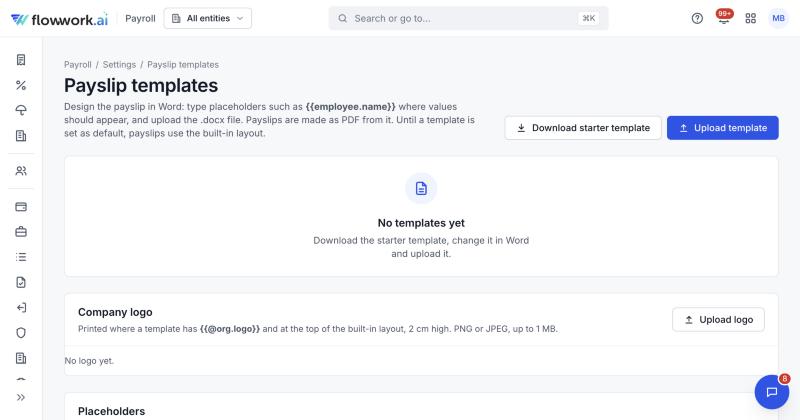
- Go to Settings › Payslip templates.
- Select Download starter template. It's a working payslip with the common placeholders.
- Change it in Word: your layout, fonts, wording and the placeholders you want (see the table below).
- Back on the page, select Upload template.
- Fill in Name and, optionally, Description.
- Select Choose Word file (.docx) and pick your file.
- Keep Use for payslips from now on on if it should be used straight away.
- Select Save.
Payroll checks the file when you upload it. You see an error, and nothing is saved, if:
- the file isn't a .docx Word document, or is larger than 5 MB,
- a placeholder isn't on the list: "Unknown placeholders: … Check the spelling against the placeholder list",
- the template can't be filled, for example a
{{without its}}, or a table row without[column]tags.
Read the full guide with your flowwork account
The rest of this page has the steps, screenshots and tips. Anyone at a company that uses flowwork can read every page, and ask the Help assistant about it.
Every step, in order Real screenshots The agents that help
New companies use flowwork free until 31 December 2026