
PayrollSetup
Pay groups
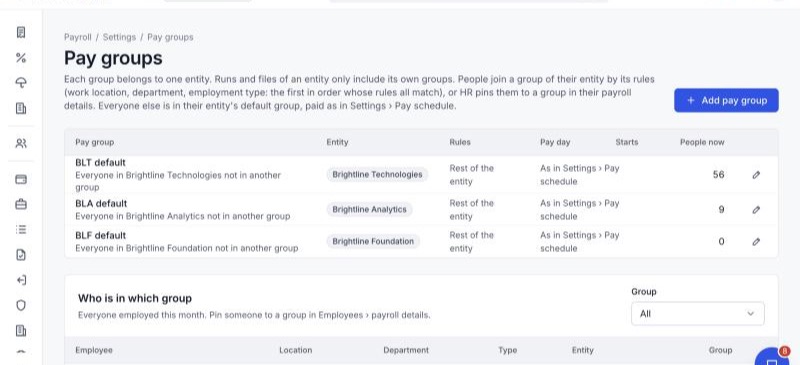
A pay group is a set of employees paid on their own cycle, with a pay run of their own each month. Use one when some people are paid on a different day or must be approved and paid separately, for example a plant, a site or interns. Everyone who isn't in a group is in the Default group, paid as in Settings › Pay schedule.
Most companies need no pay groups at all.
Before you start
- You need Manage payroll settings.
- Work locations, departments and employment types come from People. Set them there first.
- If you only want interns shown separately inside the same run, you don't need a group: use Show separately in Pay schedule.
Add a pay group
- Go to Settings › Pay groups.
- Select Add pay group.
- Fill in Name (for example "Interns") and, if you like, Description.
- Under Pay cycle, set:
- Pay day (0 = last working day): the day of the next month salaries are paid,
- Part-month pay by: Calendar days or 30 days,
- First payroll month: earlier months can't be run for this group,
- Mid-month salary (% of gross) and Mid-month pay day: leave empty to use the pay schedule's,
- Rule order: lower is tried first.
- Under Who is in it (all chosen rules must match), choose Work locations, Departments and Employment types. Empty means any.
- Keep Active on.
- Select Save. You see Pay group saved.
Read the full guide with your flowwork account
The rest of this page has the steps, screenshots and tips. Anyone at a company that uses flowwork can read every page, and ask the Help assistant about it.
Every step, in order Real screenshots The agents that help
New companies use flowwork free until 31 December 2026